
Django Projects
A Django app for publishing polished project pages, with an included reference frontend for browsing, filtering, and exploring the finished work.
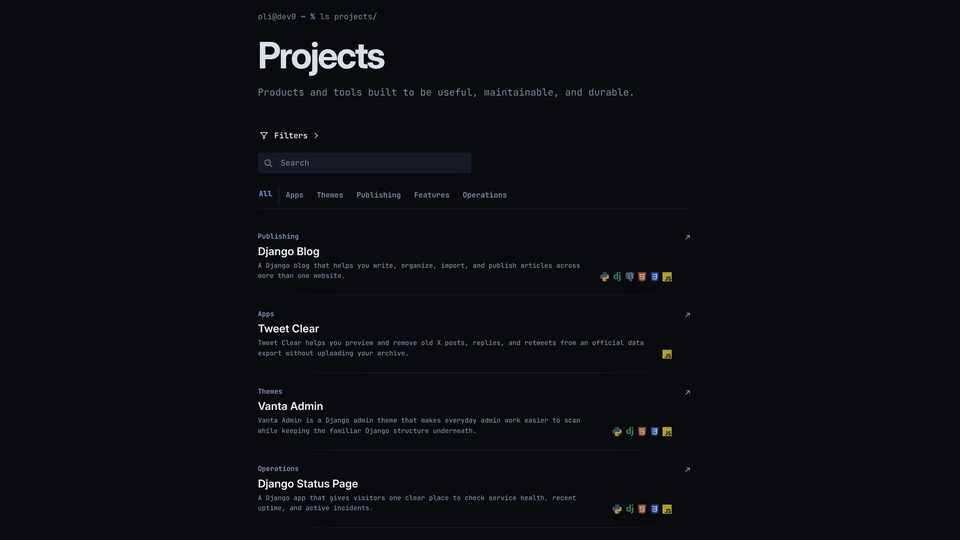
Django Projects is the app I use to manage the project pages on my website. Instead of building every page by hand, I can write the story, add screenshots, choose the technologies, and preview everything from Django Admin. A project stays private until I decide it is ready to publish.
The repository also includes site_frontend, a small reference frontend based on the layout I use on my site. It turns the app's published data into readable project lists and detail pages, with search, category navigation, technology filters, responsive images, social metadata, and an accessible gallery experience.
The public browsing flow still works without JavaScript. When JavaScript is available, filters submit immediately, the browser remembers useful filter state, themes can switch between dark and light, and multi-image galleries gain keyboard, touch, and dialog controls. Enhancement-only controls stay hidden until their scripts initialize, so a failed script does not leave dead buttons in the interface.
I also built in safeguards that make publishing easier:
- uploaded images are checked and prepared for different screen sizes
- private drafts cannot accidentally appear on the public site
- only one published project can be featured on the homepage
- project text is cleaned before it is displayed
The app and reference frontend are separate from the host website. You can use the included presentation as a starting point or replace it with your own templates, but you still need to connect the code to your Django settings, shared helpers, media storage, and root URLs.
Django Projects gallery
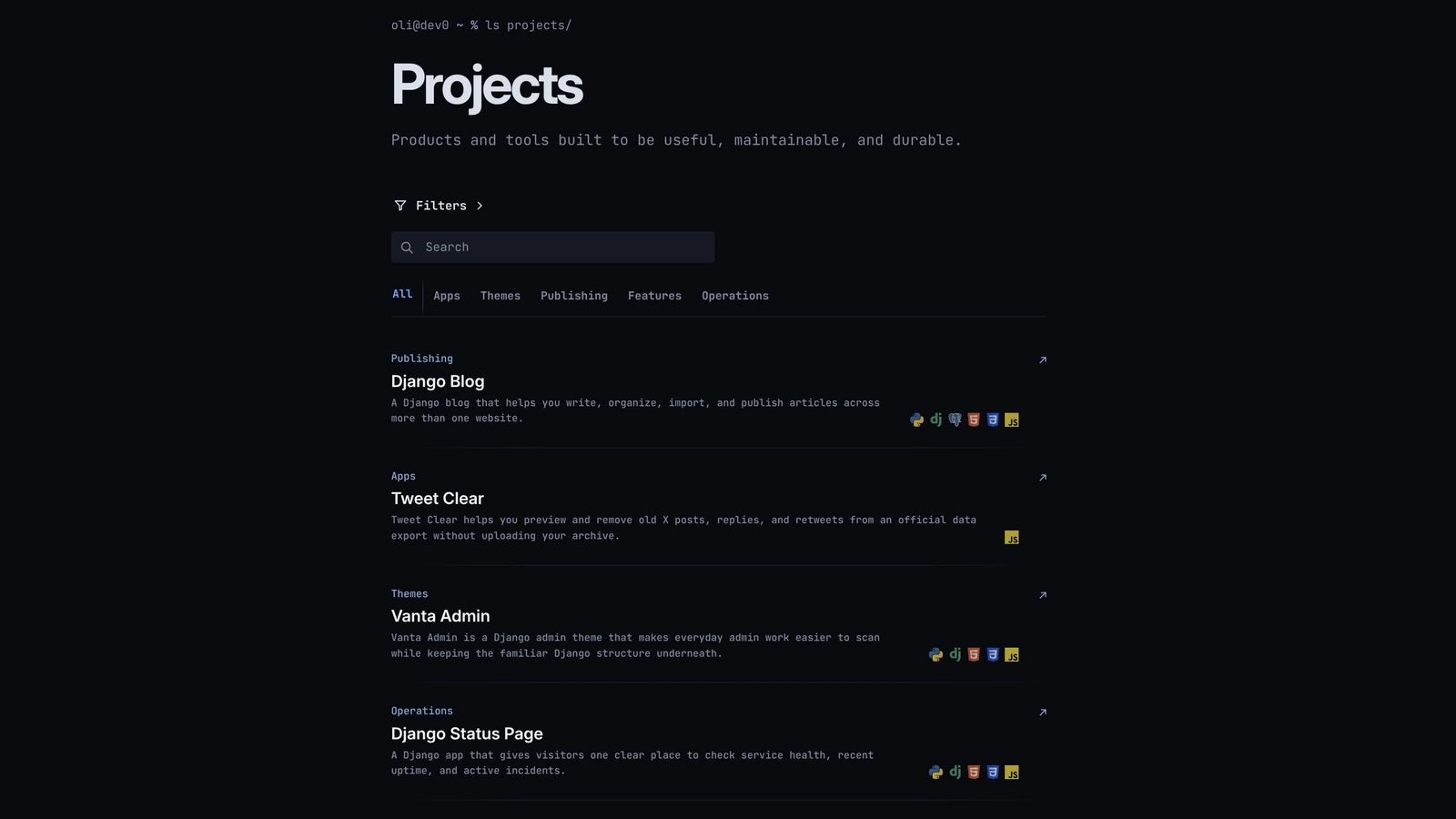
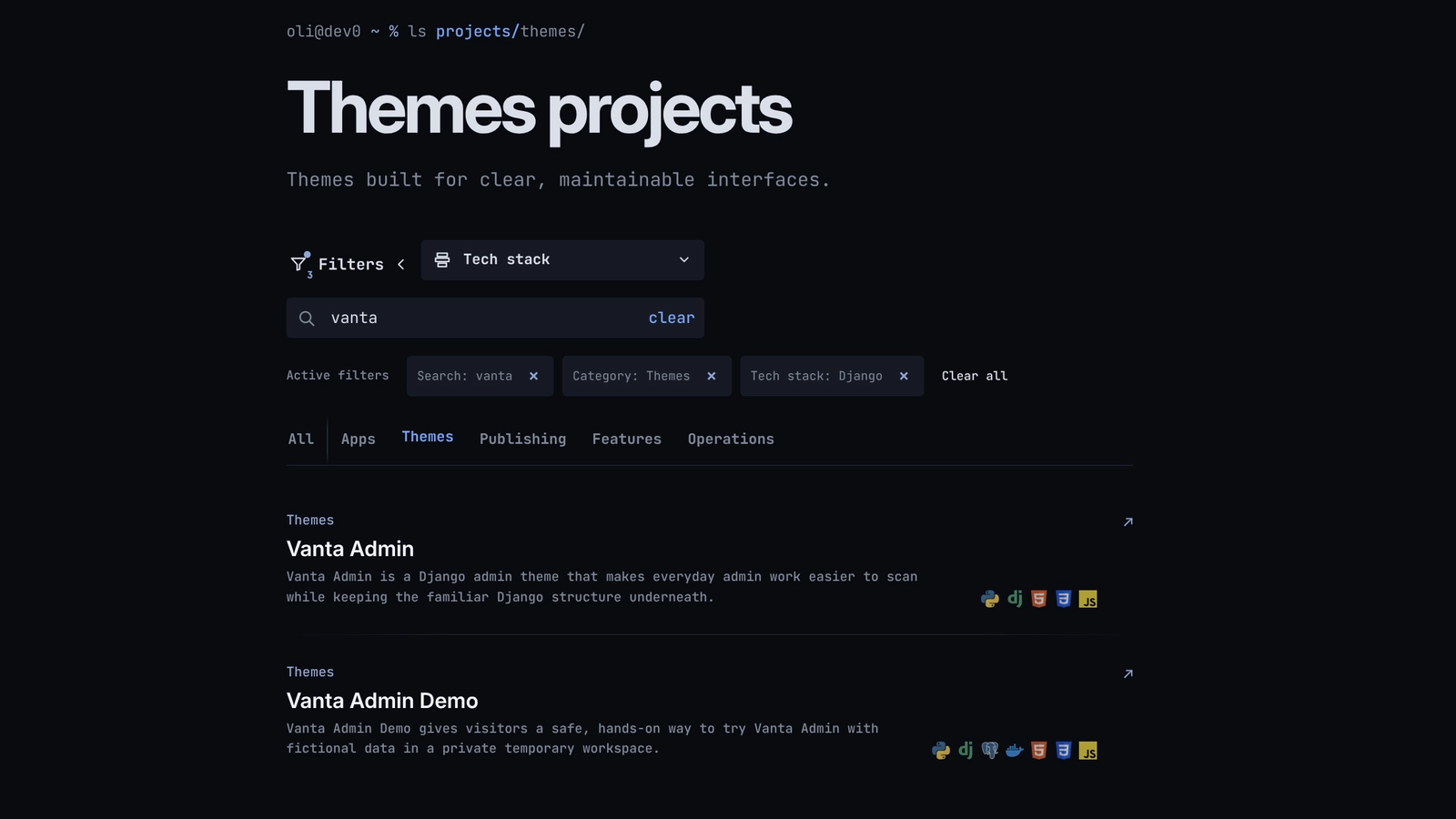
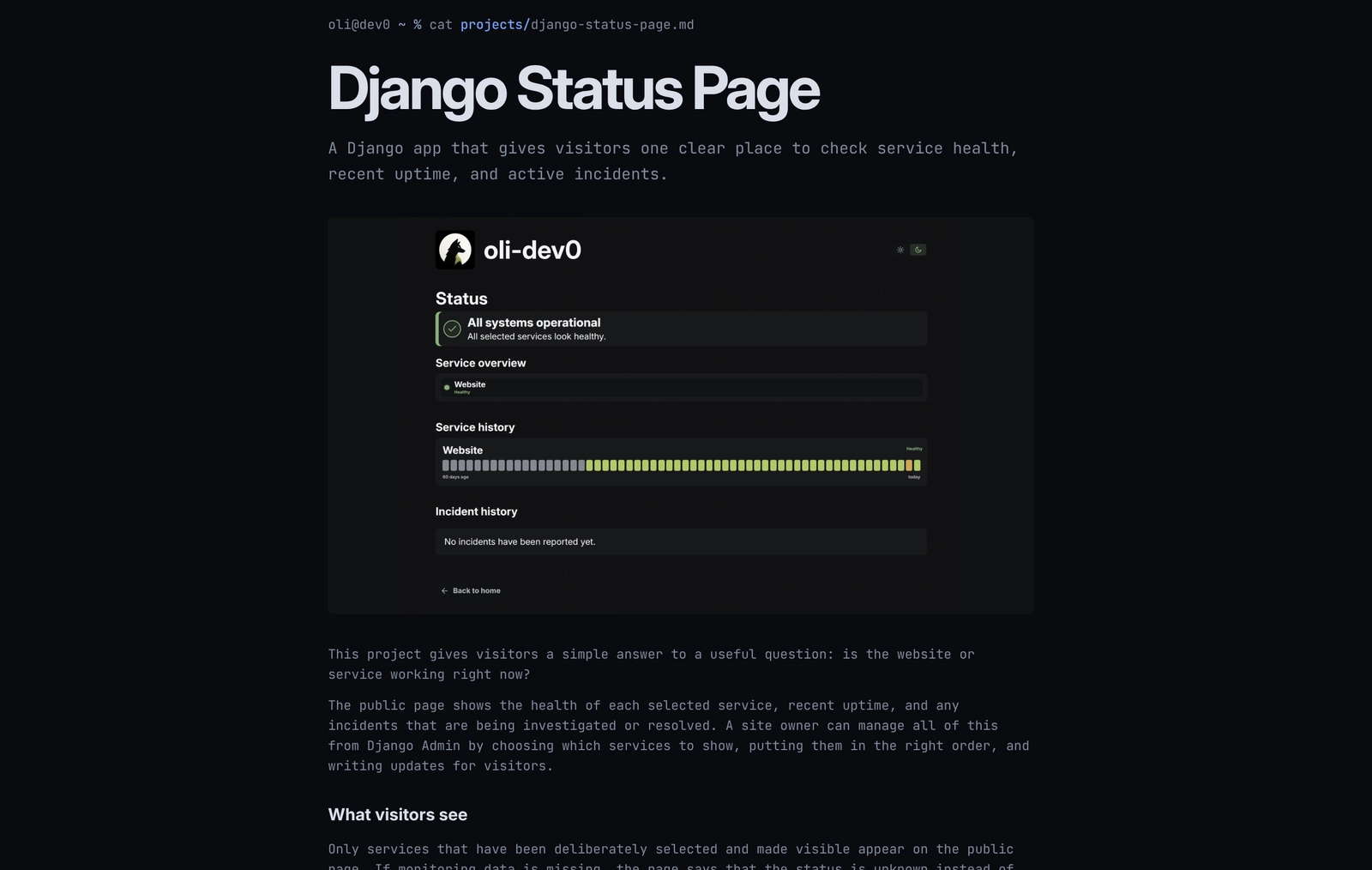
See how a project moves from a private draft in Django Admin to a polished page that visitors can search, filter, and explore.
Project information
- Category
- Features
Built with
- Python
- Django
- HTML5
- CSS3
- JavaScript





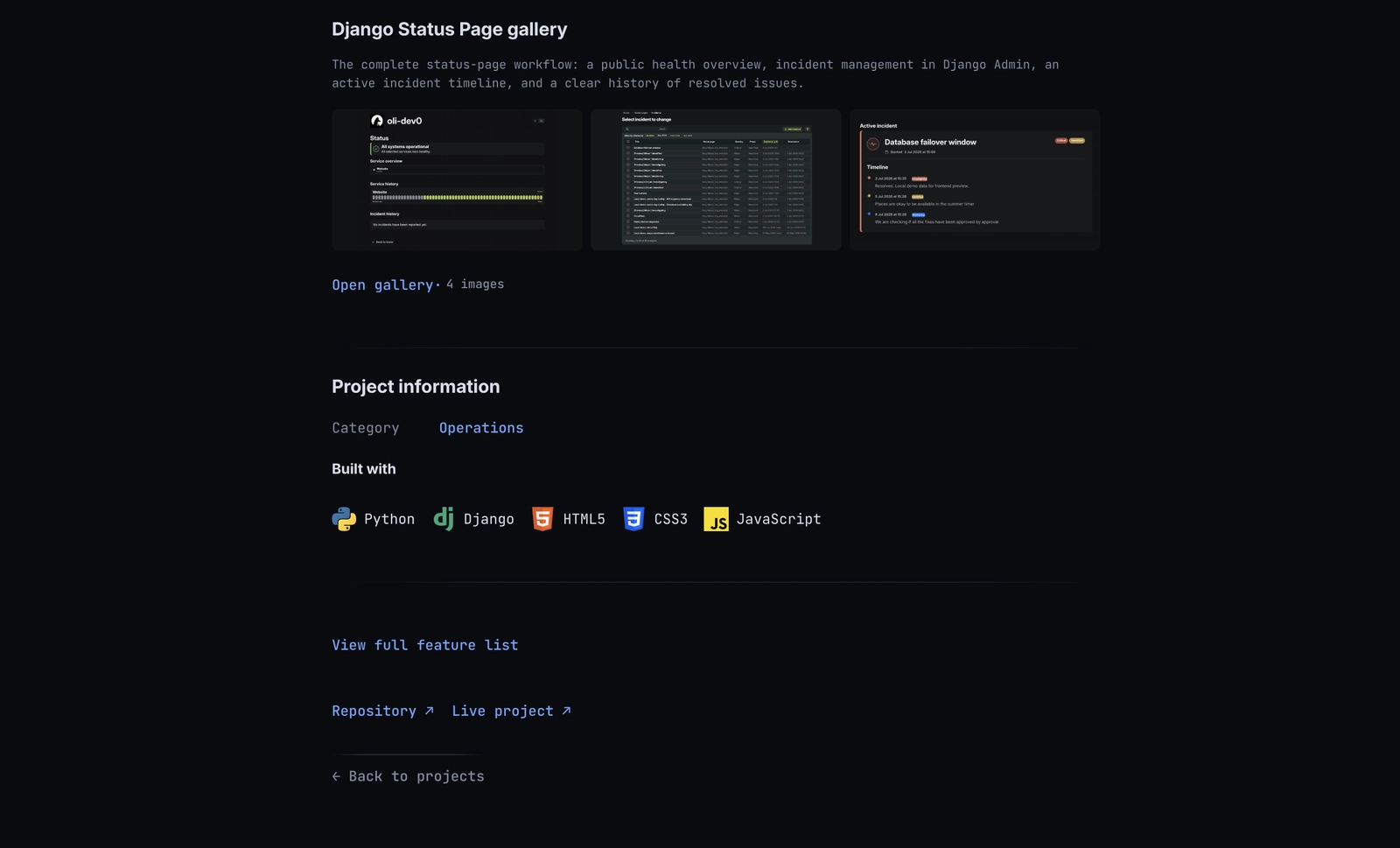
View full feature list
Django Projects gives me one place to create, organise, and publish the project pages on my website. I can prepare everything in Django Admin, while visitors get a simple portfolio they can search and explore. The repository also includes a small site_frontend reference app based on the layout I use on my site.
The main project description tells the short version. This page goes into more detail about what the app does and how it keeps the publishing process safe and manageable.
Browsing projects
- Visitors can browse every published project from one main page.
- Projects can be grouped into Apps, Themes, Publishing, Features, and Operations.
- Each category has its own clean page and web address.
- Visitors can search project titles and summaries.
- They can browse by category and filter by one or more technologies.
- When several technologies are selected, the results must include all of them.
- Active filters are clearly shown and can be removed one at a time or cleared together.
- Search and filter choices stay in the URL, so the same results can be bookmarked or shared.
- Repeated or unsupported filter values are cleaned up automatically.
- Technology names and icons help visitors scan the project list quickly.
- Everything still works without JavaScript. JavaScript only makes filtering and gallery viewing quicker.
Reference frontend
- The included
site_frontendapp provides public list, category-list, and project-detail templates. - The terminal-inspired responsive layout includes dark and light appearance controls.
- The server-rendered GET forms remain usable without JavaScript; enhancement-only theme and filter buttons stay hidden until their scripts initialize.
- JavaScript can submit filters immediately, remove active values one at a time, clear them together, and remember the technology-filter scroll position.
- Frontend fonts, icons, stylesheet, social card, and JavaScript use the
site_frontendstatic namespace. - Stylesheet asset references are relative, so the reference frontend can work with a custom
STATIC_URLor an asset host.
Reading a project story
- Every published project has its own detail page.
- The page can include a short summary, a longer story, a cover image, a gallery, the technology stack, and useful links.
- Longer text can use Markdown for headings, lists, links, emphasis, and code examples.
- Project galleries have a basic browser-friendly fallback when the enhanced dialog is unavailable.
- Multi-image galleries can open in a dialog with previous and next controls, keyboard arrow navigation, horizontal touch swipes, focus return, and a visible image counter.
- Full feature lists can open in a dialog while the original
<details>content remains available as the fallback. - Missing or unfinished images show a safe fallback instead of breaking the page.
- All public project pages are English-only and use clean URLs without a language prefix.
Creating and publishing projects
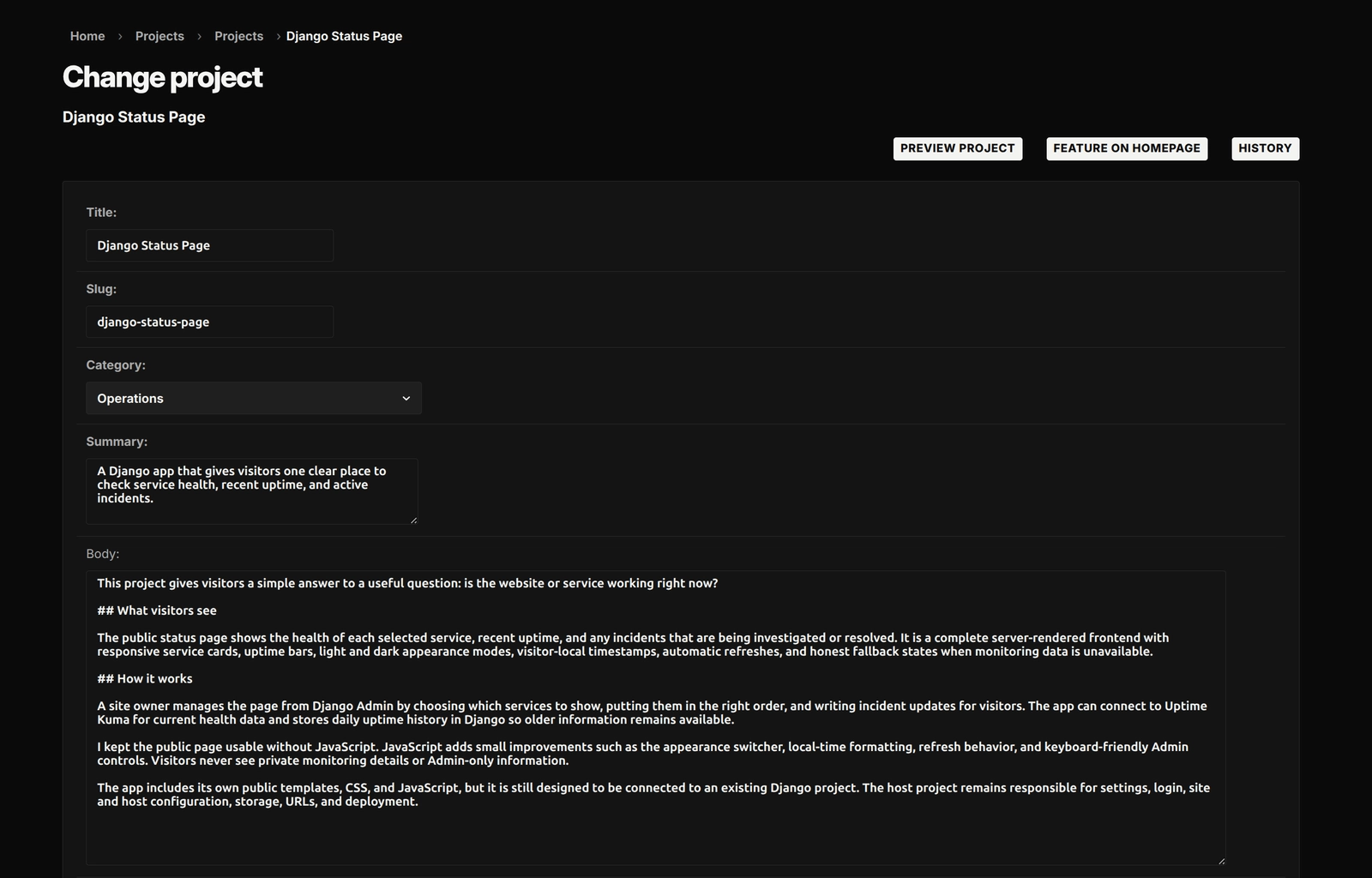
- Projects are created and edited in Django Admin.
- A new project can stay private as a draft until it is ready.
- An editor can preview any saved project before publishing it.
- Preview pages are private, are not stored in the browser cache, and tell search engines not to index them.
- Publishing or unpublishing a project does not unexpectedly move it in the project list.
- Admin users can search projects by title or slug.
- They can filter the Admin list by category, publication state, or featured state.
- The slug is suggested from the title but can still be changed.
- Editors can choose technologies from a fixed list, which keeps names and ordering consistent.
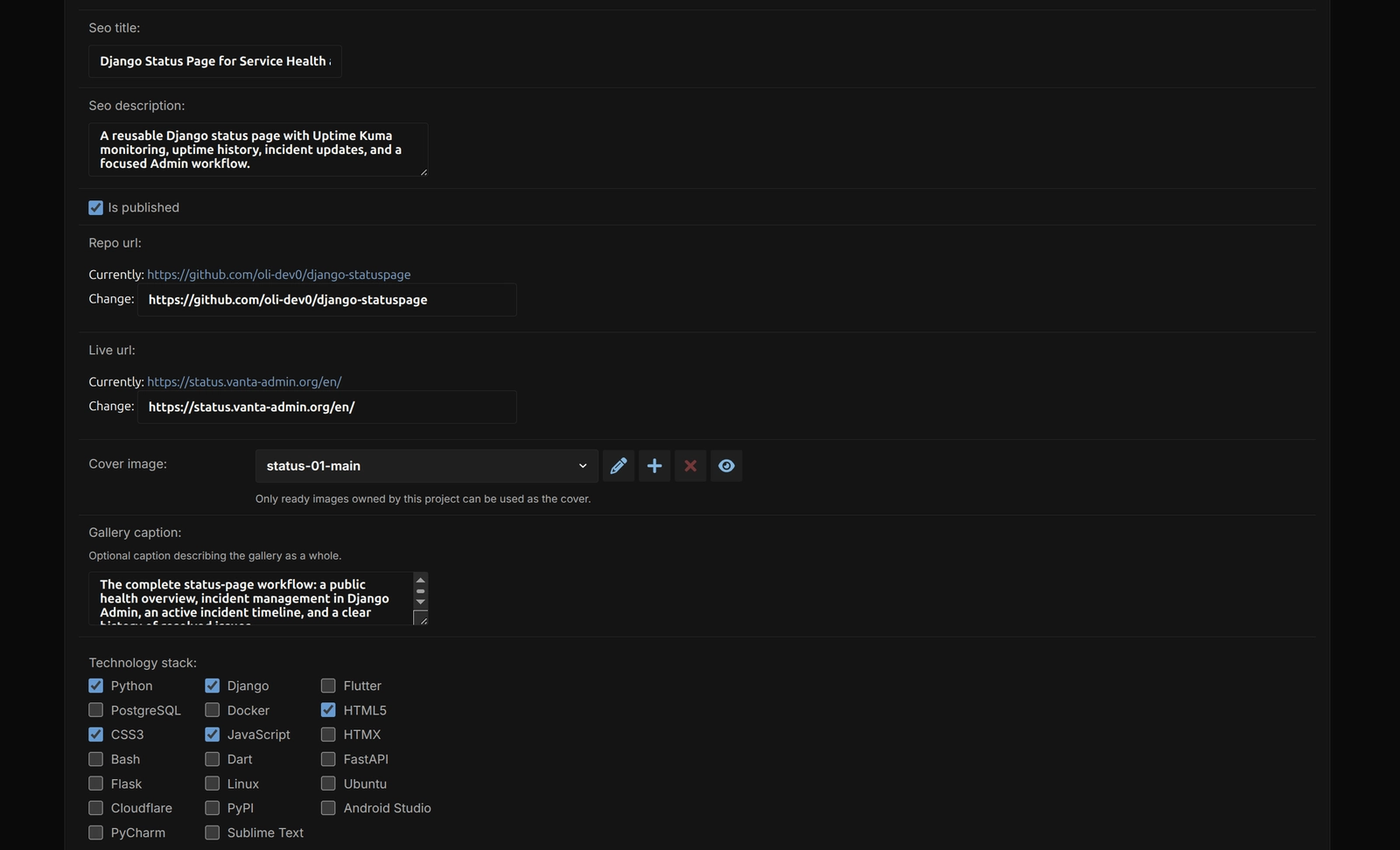
- Each project has separate fields for its summary, main story, search description, gallery caption, links, and full feature list.
Featuring one project
- One published project can be featured on the homepage.
- Featuring a different project requires a separate confirmation step.
- A private draft cannot be featured.
- Unpublishing the featured project also removes it from the homepage.
- Database rules make sure two projects cannot be featured at the same time.
Keeping projects in the right order
- Projects share one clear order, including drafts and published work.
- New projects are placed at the end automatically.
- A dedicated Admin page lets an editor arrange the complete list.
- Simple up and down buttons work with a keyboard and avoid editing order numbers by hand.
- If another project was added or removed while the ordering page was open, the editor is asked to review the latest list before saving.
- Incomplete, repeated, or invalid ordering requests are rejected.
- Empty gaps are closed automatically after a project is deleted.
Managing images and galleries
- Every image belongs to one project, which helps prevent accidental mix-ups.
- Editors can upload JPEG, PNG, or WebP images.
- Invalid, animated, oversized, or extremely large images are rejected before processing.
- Photos are turned the right way up using their saved orientation information.
- The original is kept, and smaller WebP versions are made for phones, tablets, and larger screens.
- Small images are not stretched to create larger versions.
- A centred 1200 by 630 JPEG is prepared for social sharing.
- Transparent parts of a social image use the website's dark background instead of an unexpected colour.
- Editors can see whether an image is ready, failed, or still needs attention.
- A failed first upload can be retried.
- If a replacement fails, the last working image stays available.
- Old files are removed only after the related database change has completed successfully.
- Every meaningful image needs useful alternative text. Decorative images can be marked separately.
- Any ready image from the same project can be selected as its cover.
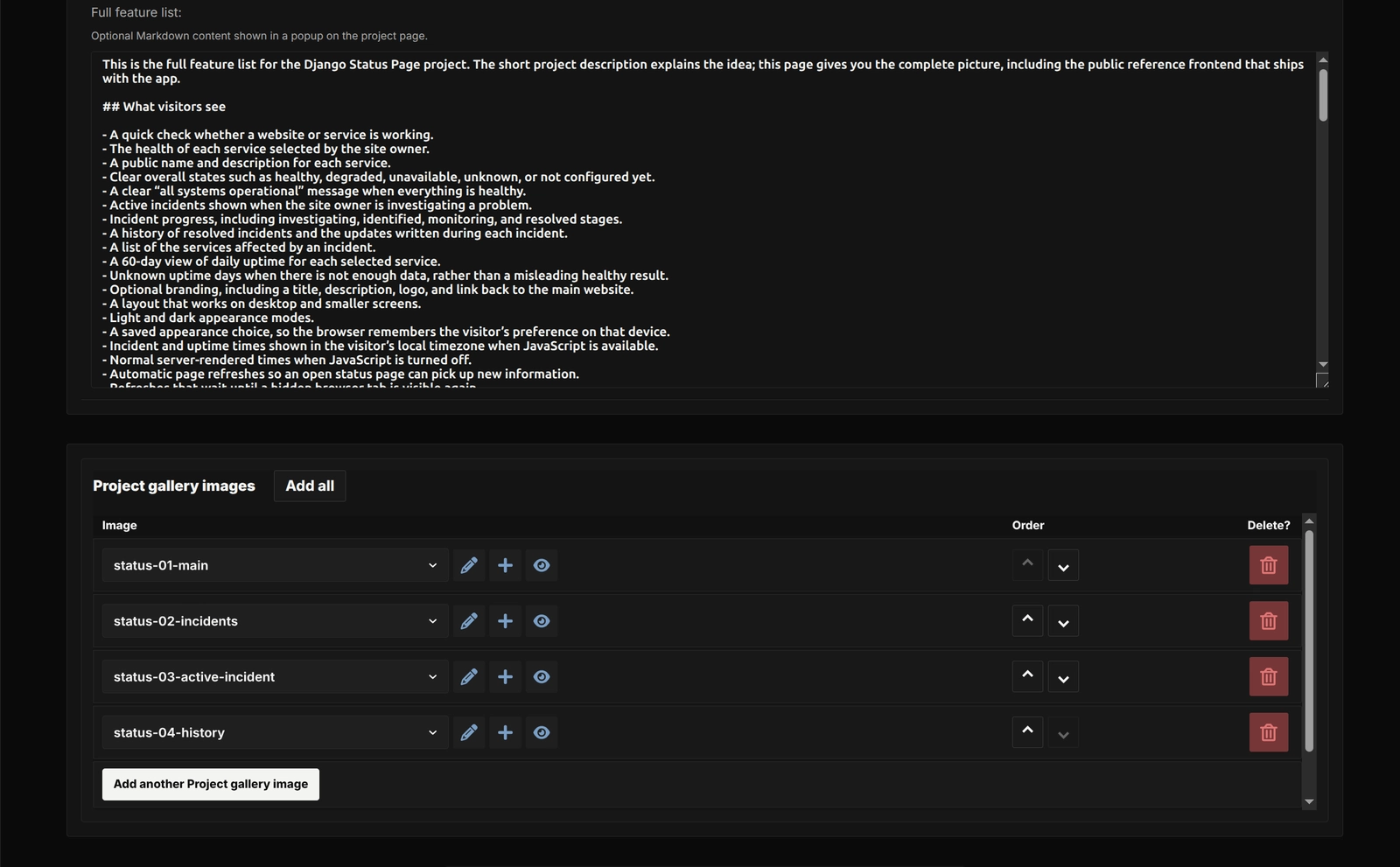
- Ready images can be added to a gallery and placed in a clear order.
- One action can add all remaining ready images to the gallery.
- The same image cannot be added to one gallery twice.
- Gallery items can be moved with keyboard-friendly controls.
- If an image is deleted, it is first removed safely from the cover and gallery.
- Several selected images can be deleted together from Django Admin.
Keeping project text safe
- Project stories and feature lists can use familiar Markdown formatting.
- The app supports paragraphs, headings, emphasis, lists, quotes, links, inline code, and short code blocks.
- Raw HTML is not allowed.
- Unsafe HTML and unsafe types of links are removed before the text reaches the public page.
- External website links open in a new tab with the appropriate safety settings.
- Heading checks keep the project title and sections in a sensible reading order.
- This cleaning happens in one shared part of the app, so templates never need to display unchecked editor content.
Making images work on different screens
- The page tells the browser which image sizes are available, so it can choose a suitable one for the visitor's screen.
- Saved width and height values help the page reserve space before an image loads.
- Images include loading guidance and the correct alternative text.
- A gallery can open the largest useful version without always loading it first.
- Images that have not finished processing, or whose files are missing, are kept off the public page.
- Technology labels and icons always follow the same predictable order.
Search engines and social sharing
- Main lists, category pages, and project pages tell search engines which web address is the preferred one, also called the canonical URL.
- Useful category pages can appear in search results.
- Temporary search and filter combinations ask search engines not to index them.
- Published projects and categories containing projects are added to the sitemap.
- Drafts and empty categories stay out of the sitemap.
- Editors can write a search title and description for each project, with sensible fallback text when those fields are empty.
- A ready cover image can be used when the project is shared on social platforms.
- The website's default social image is used when the project does not have one.
- Public list pages emit absolute canonical and social-image metadata, while detail pages use project-specific social metadata when available.
- Structured data gives search engines a safe, machine-readable description of the project and its place on the website.
Privacy and data rules
- Only published projects appear on the public list and detail pages.
- Visiting a draft or unknown project address returns a normal not-found page.
- Draft details, image errors, and Admin-only choices are not exposed through a public data API.
- Project slugs must be unique.
- A slug cannot reuse one of the category names because that would make the URL unclear.
- A gallery cannot use the same position or image twice.
- Deleting a project also removes its gallery records and project images.
- Image files are cleaned up after a successful database change rather than before it.
- Public pages are normal server-rendered HTML. The app does not add a separate JSON or Django REST Framework API.
Adding it to another Django website
- This is a reusable Django app, not a complete website that runs by itself.
- The host website provides the main settings, URLs, login, shared helpers, media storage, and deployment setup.
- The optional
site_frontendapp provides a complete reference presentation, while consumers can replace its templates and styling with their own. - Frontend templates and static assets use the
site_frontendnamespace, which avoids collisions with a host site's other static files. - The app uses the website's configured media storage for uploaded images and the versions it creates.
- Upload size and image pixel limits can be changed in the Django settings.
- Django permissions decide who can view or change projects in Admin.
- Django's normal CSRF protection helps stop another website from submitting forms or important Admin actions on an editor's behalf.
- Pillow handles images,
markdown-it-pyreads Markdown, andnh3cleans the resulting HTML.
Test coverage
- Tests check the main rules for creating, ordering, publishing, featuring, and deleting projects.
- Image tests cover accepted file types, size limits, animation checks, orientation, resized versions, failed processing, retries, replacements, and cleanup.
- Admin tests cover forms, permissions, previews, confirmation steps, old or repeated submissions, gallery tools, image deletion, and project ordering.
- Public-page tests cover drafts, categories, search, filters, clean URLs, technology labels, images, galleries, page details, and permissions.
- Text and presentation tests cover Markdown cleaning, headings, technology order, missing images, responsive image sizes, social images, and structured data.
- Reference frontend asset tests cover the public templates and scripts, namespaced icons, relative stylesheet assets, gallery behavior markers, and no-JavaScript control fallbacks.
- Sitemap tests make sure published projects and useful category pages are included while drafts and duplicates stay out.
- The wider website still needs its own checks for homepage placement, host template integration, browser interactions, responsive and theme presentation, and deployment settings.