








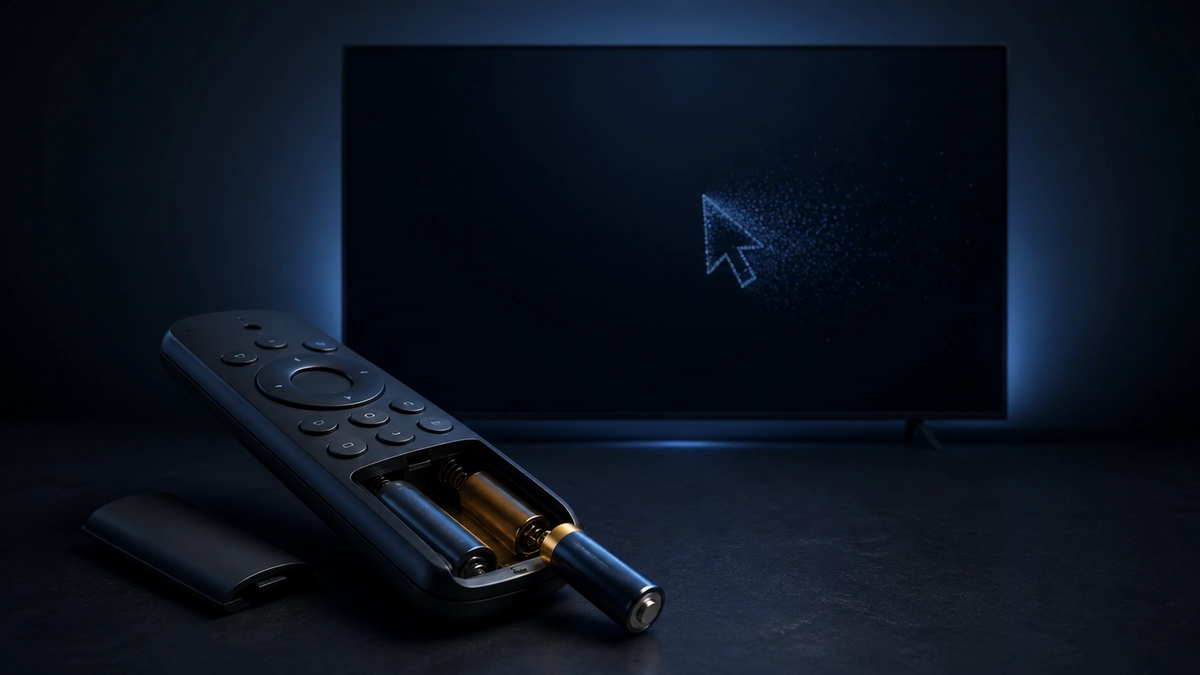
If the pointer on your LG TV appears whenever you move the Magic Remote, you can stop it by deregistering the remote and deliberately interrupting the next registration attempt. If your TV does not offer a normal setting to turn the pointer off, this workaround lets you keep using the ordinary remote buttons without the motion-controlled cursor.
There is one important trade-off: the microphone and voice-control features will not work while the Magic Remote is unpaired. You can pair it again later if you want those features back.
Why this removes the LG TV pointer
The on-screen pointer is one of the Magic Remote's paired features. LG normally asks you to press the Wheel (OK) button to register the remote, while holding Back and Home for five seconds deregisters it on many models.
The trick is to let registration begin and then remove the batteries before it finishes. Once the TV shows that registration failed, the remote remains unpaired and moving it should no longer bring up the pointer. This is a workaround rather than a permanent pointer setting, so a TV update or another registration attempt may make you repeat it.
Official LG pairing guidance: LG explains how pairing affects the pointer and voice recognition, and notes that the reset method can differ by remote model.
How to disable the LG Magic Remote pointer
- Turn on your LG TV. Remove the battery cover from the remote now so you can reach the batteries quickly.
- Press and hold Back and Home together. Keep holding both buttons for about five seconds, until the TV says the remote is disconnected or the remote's power light flashes.
- Press the Wheel (OK) button. This starts registering the Magic Remote again.
- Remove the batteries immediately. As soon as the registration message appears, pull the batteries out before the process finishes.
- Wait for the failure message. The TV should show a message such as “Registration failed.” You can then put the batteries back into the remote.
How to check that it worked
Move or shake the remote as you normally would. If the pointer does not appear, the workaround worked. Check the arrow, volume, channel, Back, and Home buttons too, so you know the controls you use still respond.
If the pointer appears again, the remote finished registering before you removed the batteries. Repeat the steps and pull the batteries a little faster when the registration message appears.
Will this work on every LG TV?
LG has used different Magic Remote models and button combinations over the years, so this exact sequence is not guaranteed on every LG TV. Back and Home is the documented deregistration combination for many remotes, but LG also says the reset method can vary by model.
If holding Back and Home does not disconnect your remote, check the manual for your exact TV or Magic Remote. Do not keep changing unrelated accessibility or pointer settings, because those options may only change how the pointer looks or moves rather than switching it off.
How to turn the Magic Remote features back on
If you want the pointer, microphone, or voice control back, point the remote at the TV and press the Wheel (OK) button to register it again. Wait for the TV to confirm that registration is complete.
If that does not work, follow the pairing instructions for your exact remote model. Once the remote is paired again, moving it should bring the pointer back and the microphone can work normally.