








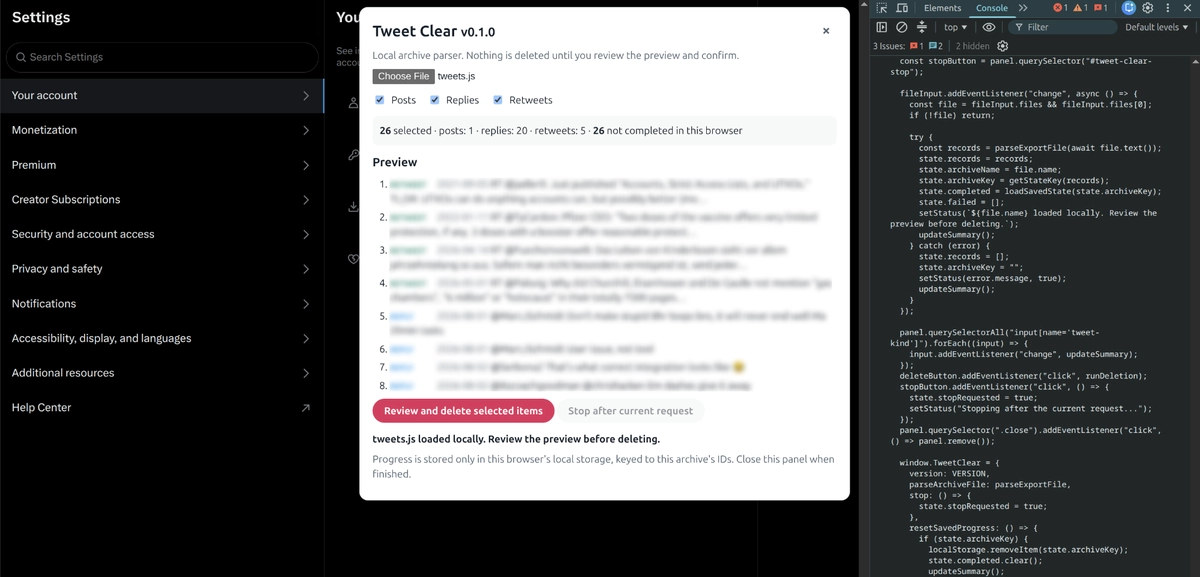
If you want to remove your old X posts, replies, and retweets, Tweet Clear gives you a preview-first way to work through your own X data archive. You download the archive, open the public tweet-clear.js script on GitHub, paste its code into the browser console while logged in to X, review the items it found, and only then confirm the deletion.
This is a guide to deleting the posts covered by your archive. It is not a magic “erase everything everywhere” button: posts made after the archive was created are not included, and likes, bookmarks, follows, direct messages, and profile data are outside Tweet Clear’s scope.
What Tweet Clear does
Tweet Clear is a small JavaScript tool that runs in your browser on x.com. It does not ask for your password, does not use the official X API, and does not upload your archive to another service. It reads the selected file in the browser and sends deletion requests through the logged-in X web session.
The tool is deliberately cautious:
- selecting an archive only parses it and shows a preview;
- posts, replies, and retweets are selected by default, with separate checkboxes;
- quote posts are treated as ordinary posts;
- deletion starts only after you click the button and type
CLEAR MY X PROFILEexactly; - completed IDs are saved in this browser so an interrupted run can skip work already completed with the same archive.
How to use Tweet Clear
1. Request and download your X archive
Tweet Clear needs the official X data export because it uses the post IDs stored in that export. Request a new archive even if you already have an older one; the archive is a snapshot, so it cannot include posts you create after the request.
On the X website:
- Log in to the X account you want to clean.
- Open More in the left navigation.
- Select Settings and privacy.
- Choose Your account.
- Select Download an archive of your data.
- Confirm your password and complete the email or phone verification if X asks for it.
- Select Request archive or Request data.
- Wait for X to tell you that the archive is ready, then download the ZIP while logged in to the same account.
Keep the original ZIP as your backup. Extract a working copy for Tweet Clear instead of modifying or deleting your only backup.
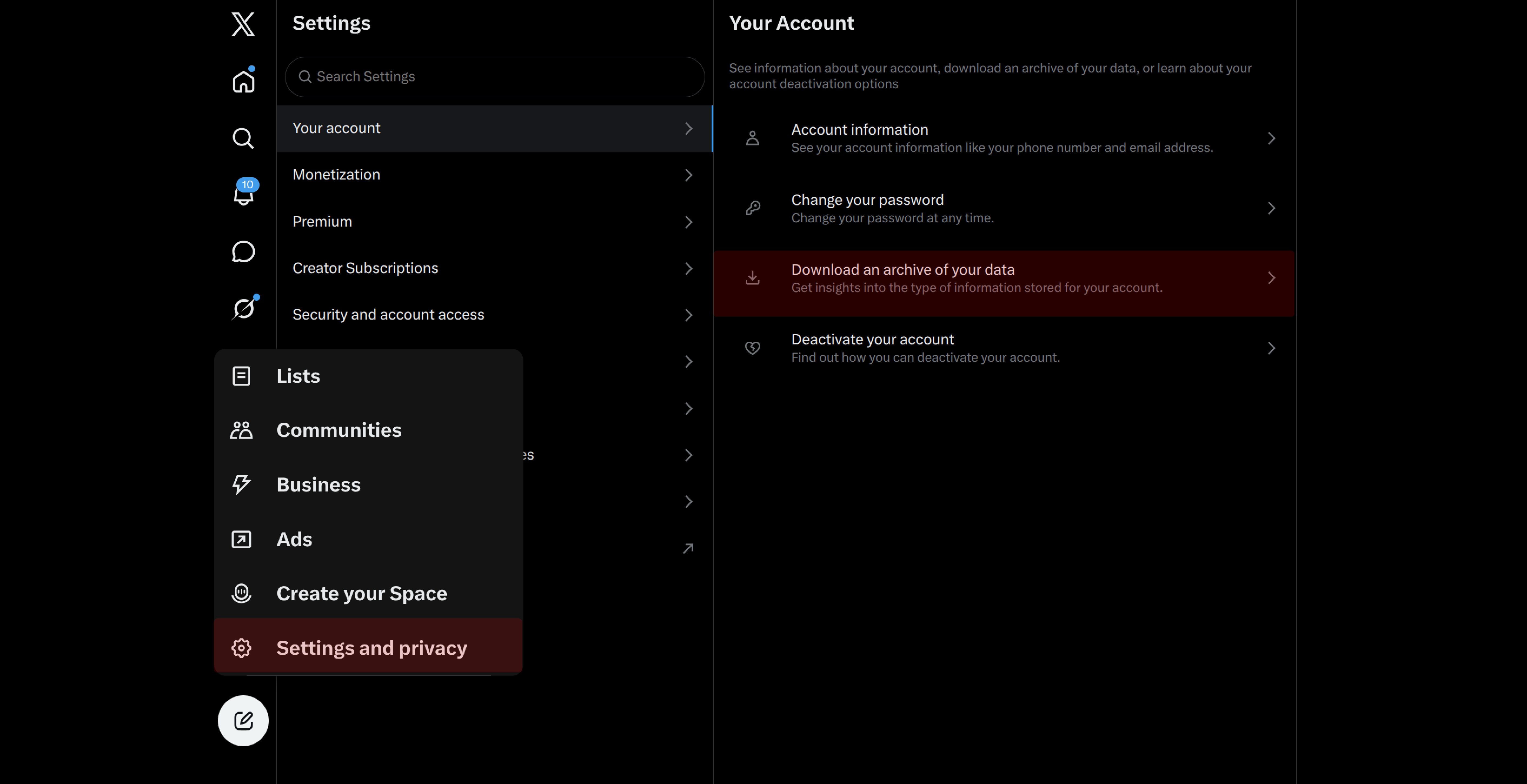
How to download your X archive X's current instructions explain the verification, request, email, and ZIP download steps.
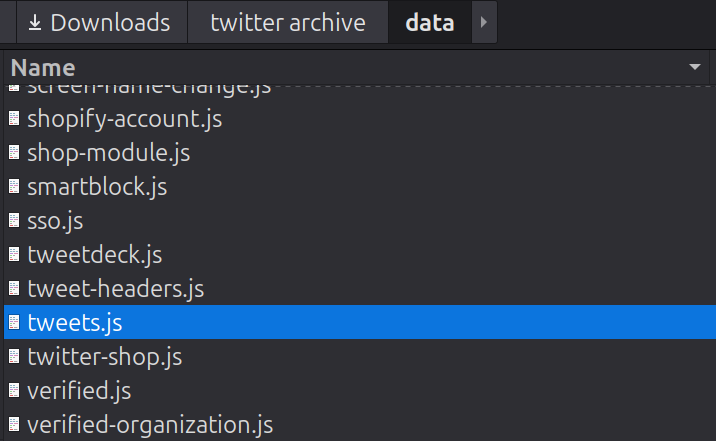
2. Find archive/data/tweets.js
Extract the X archive ZIP. The folder you need is usually named archive, and inside it you should find:
archive/data/tweets.jsThis is the file to select in Tweet Clear. Do not select deleted-tweets.js: those posts are already marked as deleted in the archive and are not part of the cleanup run. If you cannot find data/tweets.js, check that you extracted the complete X archive rather than opening files inside the ZIP preview.
Tweet Clear understands the current window.YTD.tweets.part0 = [...] format and also accepts some older JSON-like export formats. If it reports that no tweet IDs were found, stop and check the selected file rather than trying random files from the archive.
3. Open X and the browser console
Open a new browser tab at x.com and log in to the account you intend to clean. Stay on that X tab while the script runs; it uses the authenticated browser session for that page.
In Chrome or another Chromium-based browser, open Developer Tools and choose the Console tab. The quickest Chrome shortcut is:
- Windows, Linux, and ChromeOS: Ctrl + Shift + J
- macOS: Command + Option + J
You can also right-click the page, choose Inspect, and then select Console. If the console is docked at the bottom or side of the browser, that is fine.
Leave the console open on the X tab. You will paste the script into it after opening the public GitHub page in the next step.
Chrome DevTools Console reference Chrome documents the Console shortcuts and the panel used to run JavaScript on the current page.
4. Open and run the Tweet Clear script
With the X tab logged in and its Console still open, open the tweet-clear.js script on GitHub in another tab.
- Click GitHub’s Copy button to copy the complete script.
- If the Copy button is not available, select Raw, then copy everything from the first line to the last line.
- Return to the X tab, click the Console input, paste the code, and press Enter.
- Do not edit the code or add anything to it.
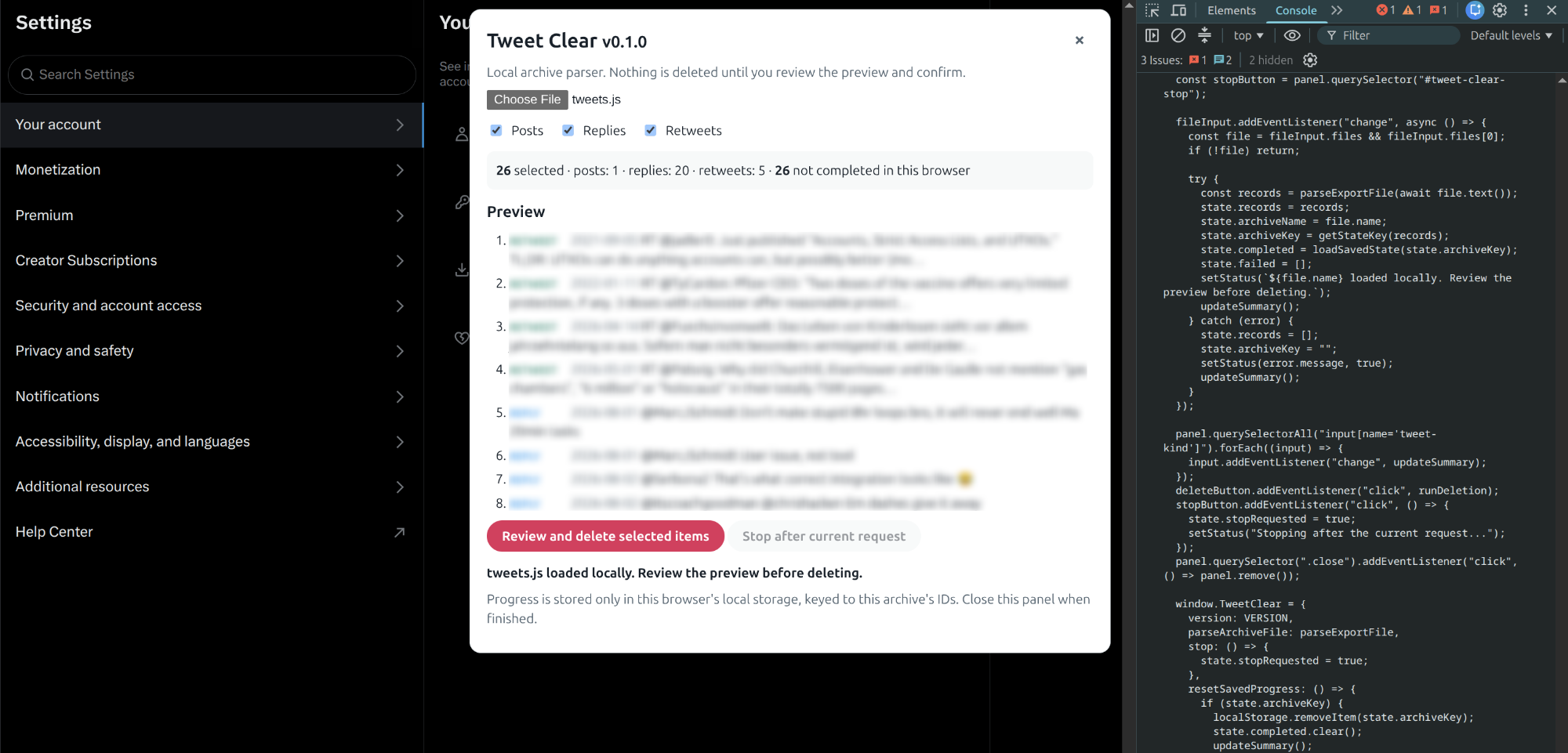
You should see a Tweet Clear panel appear on the X page and a message in the console saying that Tweet Clear loaded. You do not need to download the repository or save the JavaScript file locally.
Some browsers show a self-XSS warning before allowing pasted code. Treat that warning seriously: only enable pasting after you have verified that you opened the script from the Tweet Clear GitHub file, and never paste an extra command from an unknown website.
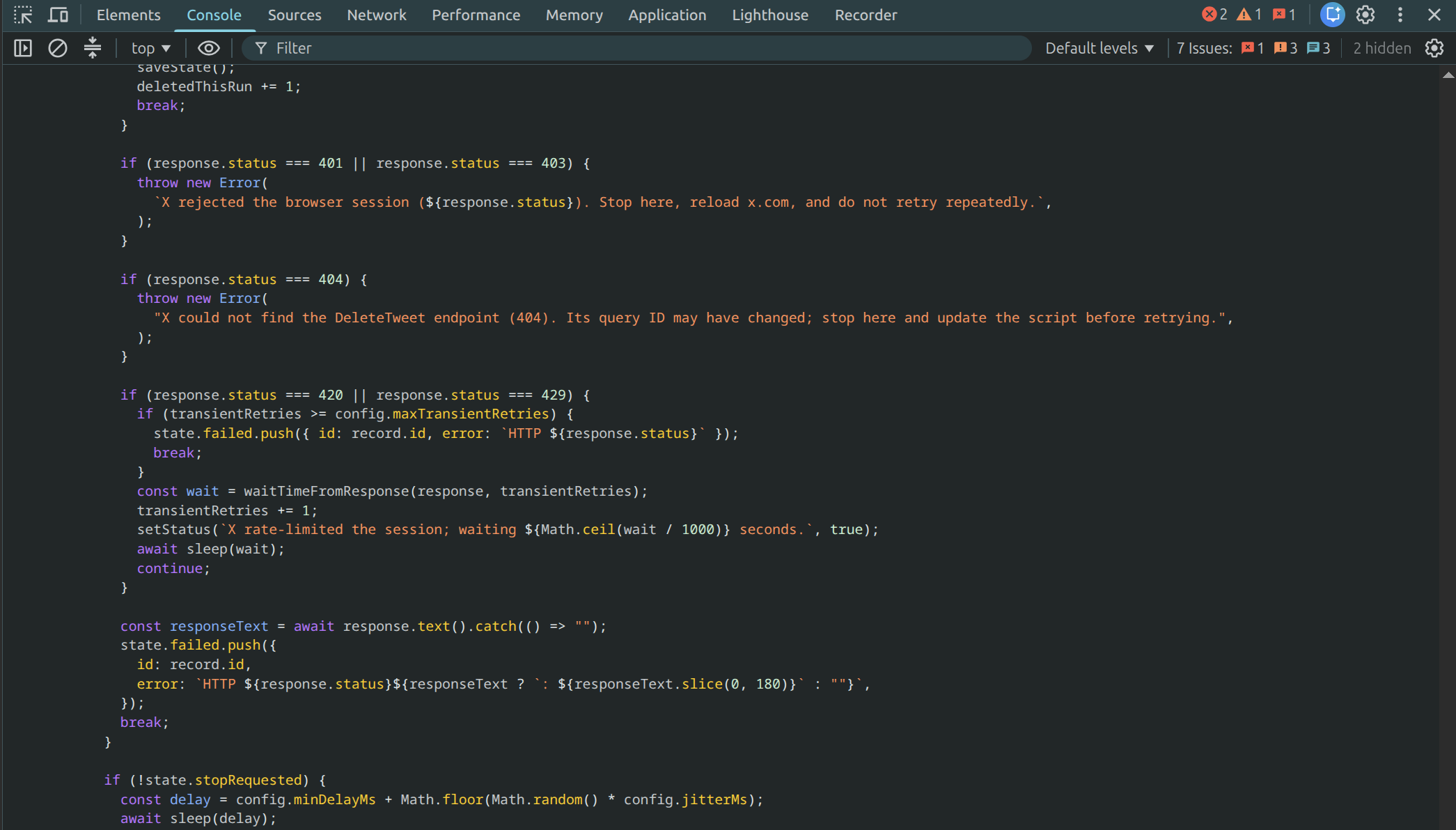
Tweet Clear JavaScript file Copy the complete script from GitHub; the Raw file is an alternative view for copying the code.
5. Select the archive and review the preview
In the Tweet Clear panel:
- Select the file picker.
- Browse to the extracted X archive and choose
archive/data/tweets.js. - Wait for the file to load locally.
- Check the counts for posts, replies, and retweets.
- Read the sample items in the preview.
- Use the checkboxes if you want to leave one of the categories untouched.
Nothing is deleted when you choose the file. This is your main safety check. If the count is unexpectedly high, the sample looks wrong, or you selected the wrong account’s archive, close the panel and start again with the correct file.
6. Confirm the deletion
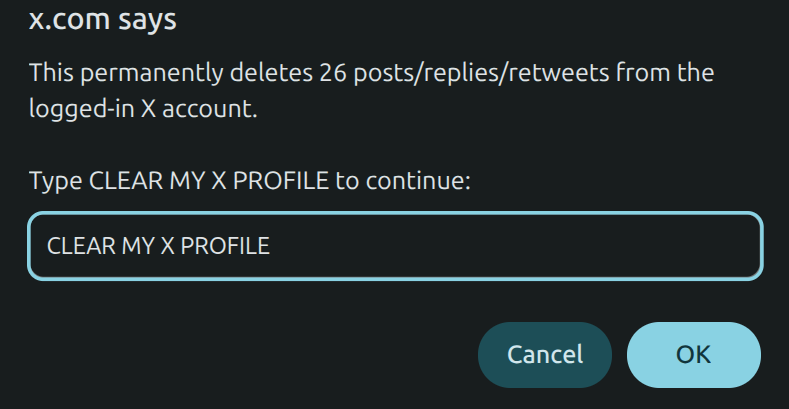
When the preview is correct, select Review and delete selected items. Tweet Clear opens a confirmation prompt showing how many items it plans to delete.
Read that number again. If it is correct, type the phrase below exactly, including the capital letters and spaces. If you cancel the prompt or type anything else, Tweet Clear cancels the deletion.
There is no undo button. X may also restrict accounts that perform mass deletion, and the script’s internal X request can stop working if X changes its web application. Use it only for your own account and accept that risk before continuing.
CLEAR MY X PROFILE
7. Leave the tab open and check the result
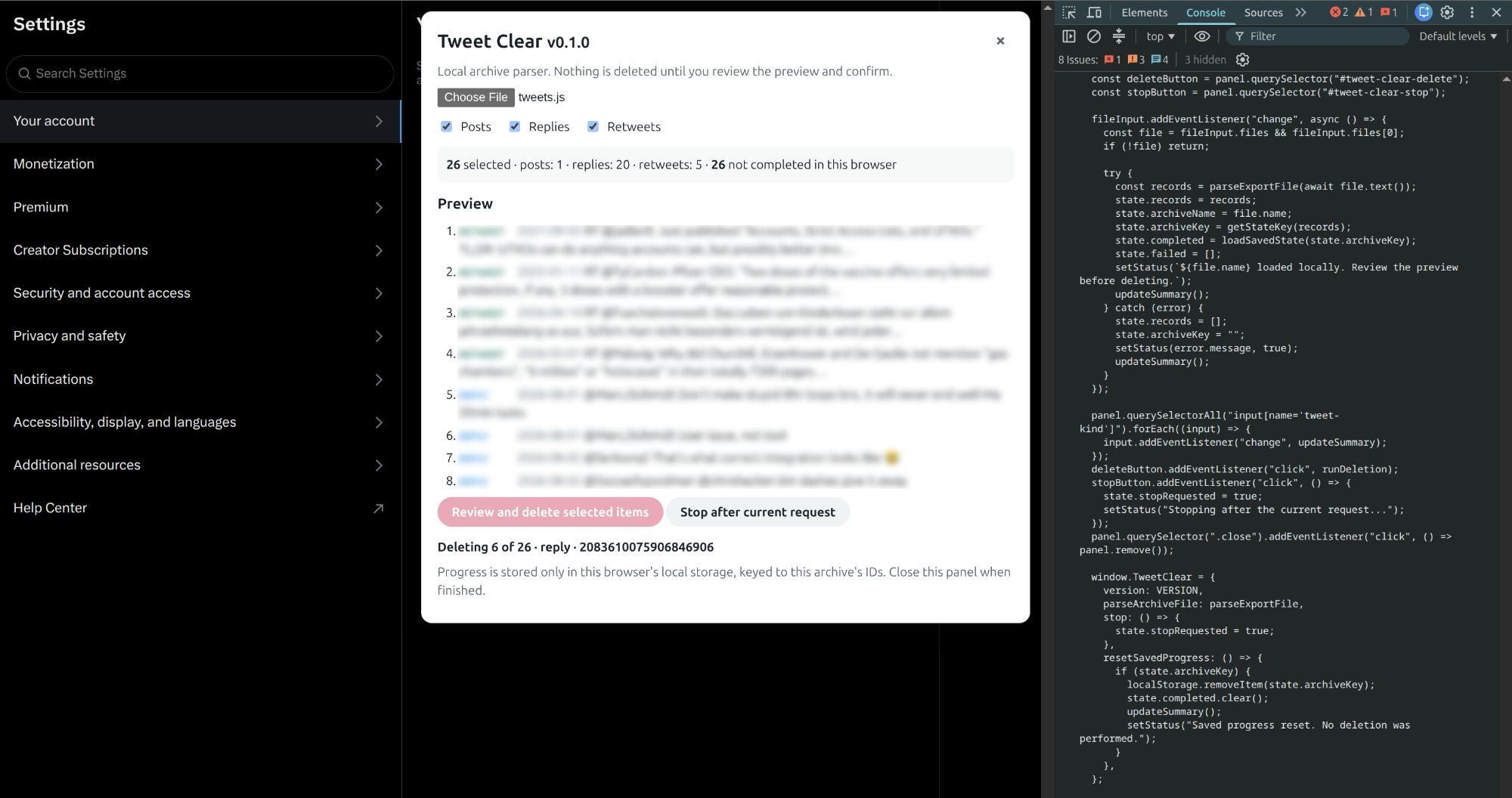
After you confirm, leave the X tab open. Tweet Clear deletes items one at a time with a delay between successful requests. If X responds with a temporary rate limit, the script waits and retries. Large archives can therefore take a while.
You can choose Stop after current request if you want to pause. Successful IDs are saved in this browser, keyed to the archive’s contents, so you can load the same archive again and continue without repeating completed work. If the run finishes with failures, read the status message and the console table before deciding what to do next. Do not repeatedly retry a session that X has rejected.
Finally, remember that the archive was created at a point in time. Any posts made after you requested it are not in this run. If you want to clear those as well, request a fresh archive and repeat the review process.
What Tweet Clear does not delete
- Likes
- Bookmarks
- Follows and followers
- Direct messages
- Profile information
- Posts created after the downloaded archive
- Items already represented as deleted in deleted-tweets.js
If something goes wrong
Start with the simplest checks: confirm that you are on x.com, logged in to the intended account, and using the correct archive/data/tweets.js file.
- If the archive parser finds no IDs, select the file inside the extracted
archive/data/folder again. - If X returns a 401 or 403, stop, reload X, and log in again. Do not keep retrying the rejected session.
- If the script reports a 404 for the deletion endpoint, X may have changed its internal web request. Stop and wait for the script to be updated.
- If X returns a 420 or 429 rate-limit response, let Tweet Clear wait and retry. A large run may take much longer than you expect.
- If a network error repeats until the retry limit is reached, note the failed items and try again later rather than running several copies at once.
The tool depends on X’s current web application, so a future X change can require a new Tweet Clear version. That is a limitation of this approach, not a problem you should solve by pasting random replacement code into the console.
Quick checklist before you start
- I downloaded a fresh X archive and kept an untouched backup.
- I extracted the archive and found archive/data/tweets.js.
- I opened the Tweet Clear script from its public repository.
- I am logged in to the X account I own and intend to clean.
- I copied the complete tweet-clear.js script into the X tab’s Console.
- I reviewed the counts, categories, and sample items.
- I understand that deletion is permanent and may take time.